Blog

How to use Remote Desktop Connection (RDC) on Mac OS X

There is no lack of support for RDP/RDC (Remote Desktop Connection) on Mac OS X. The best option for Mac OS X users to connect to remote Windows Servers, is to download the official Microsoft RDC for Mac application. We have mirrored it here for convenienceMac RDP Downloads

RDC for Mac supports all the same RDP features as Windows 8 and Windows 7 clients:

  • Forward drives, folders, printers
  • Configure sound play-through and advanced session settings
  • Full remote desktop protocol support

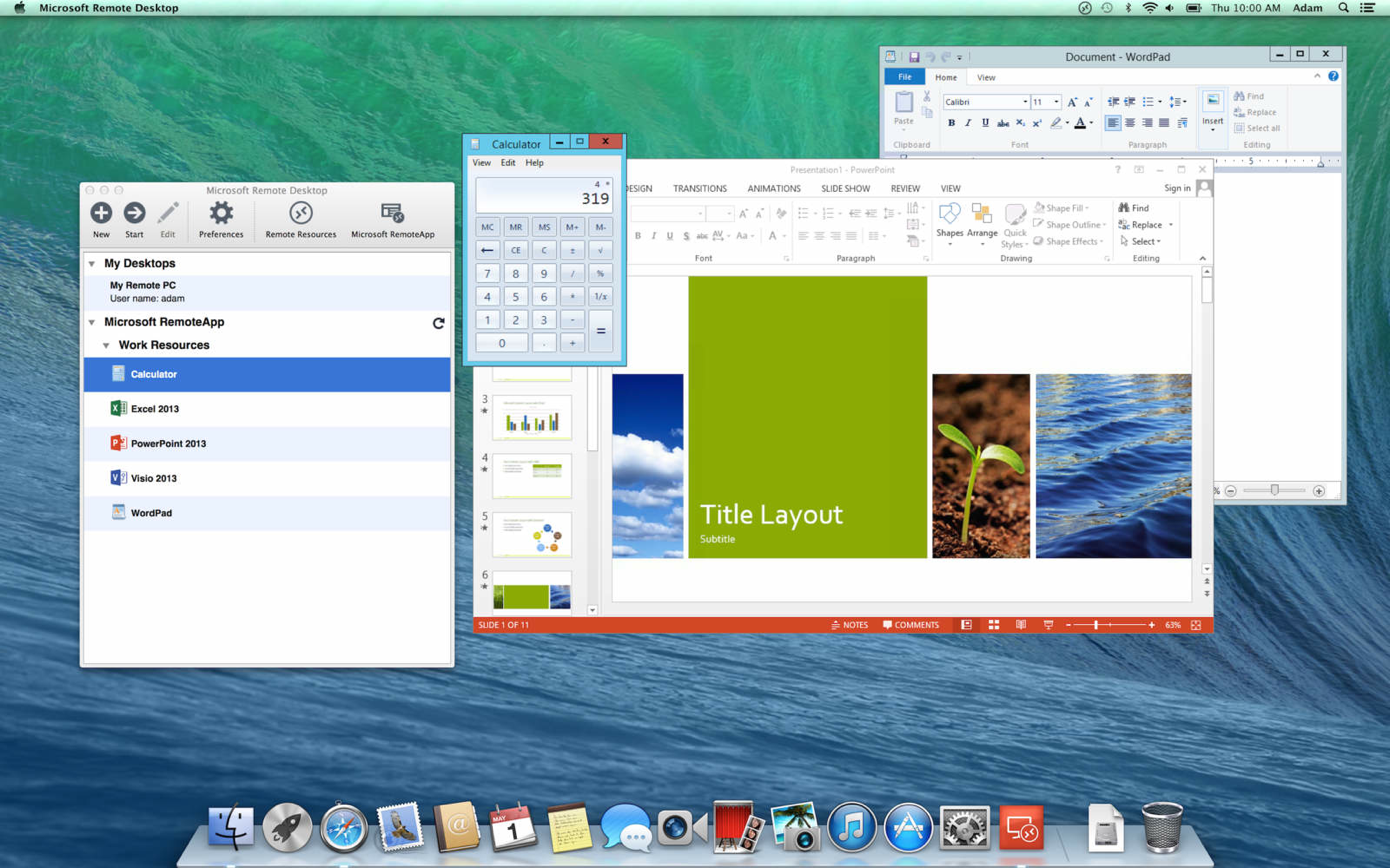
In addition, there is a newer  of Microsoft RDC for OS X 10.7 and above, though it must be downloaded directly from the App Store in OS X. It includes a few new features, and support for Microsoft RemoteApp:
mac-rdc-2

We also recommend the open-source application CoRD for OS X, which can be downloaded from here (Sourceforge). We think CoRD is possibly the best RDP client for Mac users, but we will demonstrate a connection to a Windows VPS with Microsoft RDC.

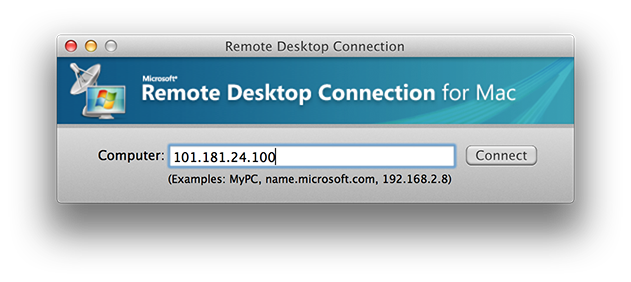
Whichever client you choose, the connection process will be similar. Open RDC and enter the IP Address of your RDP VPS or server when prompted for ‘Computer’:
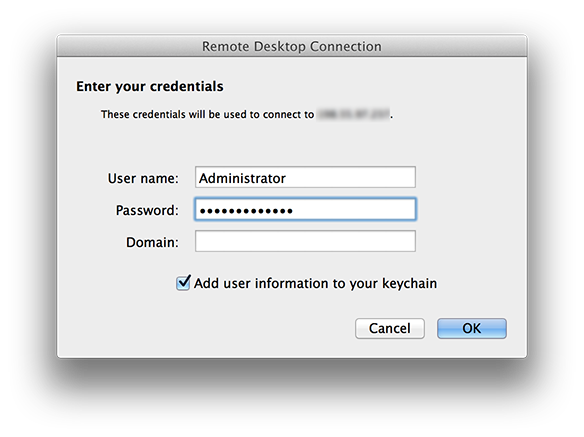
mac-rdc-connect3At the next prompt, enter your server login information. The username is often “Administrator”, and you can leave the ‘Domain’ field empty in most cases.
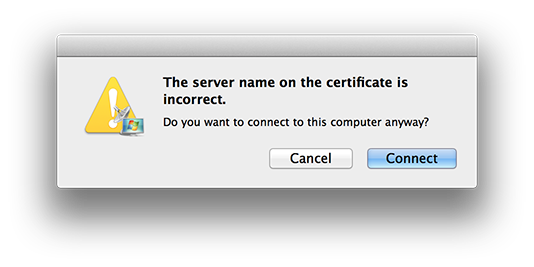
mac-rdc-connect2You might see a warning like the one below, “The server name on the certificate is incorrect.” This is OK, and usually means that you are connecting directly to the virtual server’s IP address (rather than hostname), or your local computer does not have the remote certificate downloaded (not required). It’s OK to continue.
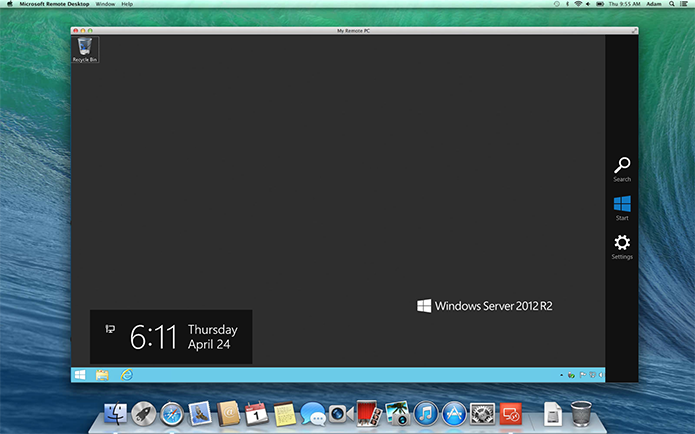
mac-rdc-connectThat’s it! Now you should see the desktop of your remote virtual server:
mac-rdc-1

Use the same steps above to connect with RDP to Windows 2012 VPS, Windows 2008 VPS, and Windows 2003 VPS systems, or other Windows Servers.

We hope this guide has been useful. If you have any questions about connecting to a Windows Server or PC from Mac OS X, please contact us!
Posted in Guides & How To's, Tech Support, VPS Hosting, Windows Server, Windows VPS | Tagged , , , , , | Comments closed

Domains, SSL Certificates, and Client Panel Updates

Greetings,

This week we have completed several updates to our service and website. We are most excited to announce the availability of low-priced SSL Certificates from Comodo, GeoTrust, and Symantec/VeriSign, which can now be found in the store and under service Add-ons.

Pricing information:

  • Domain names starting at $9.95 for .com, .net, .org, and others.
  • SSL Certificates starting at $9.95, with instant SSL, wildcard, and EV SSL options available.

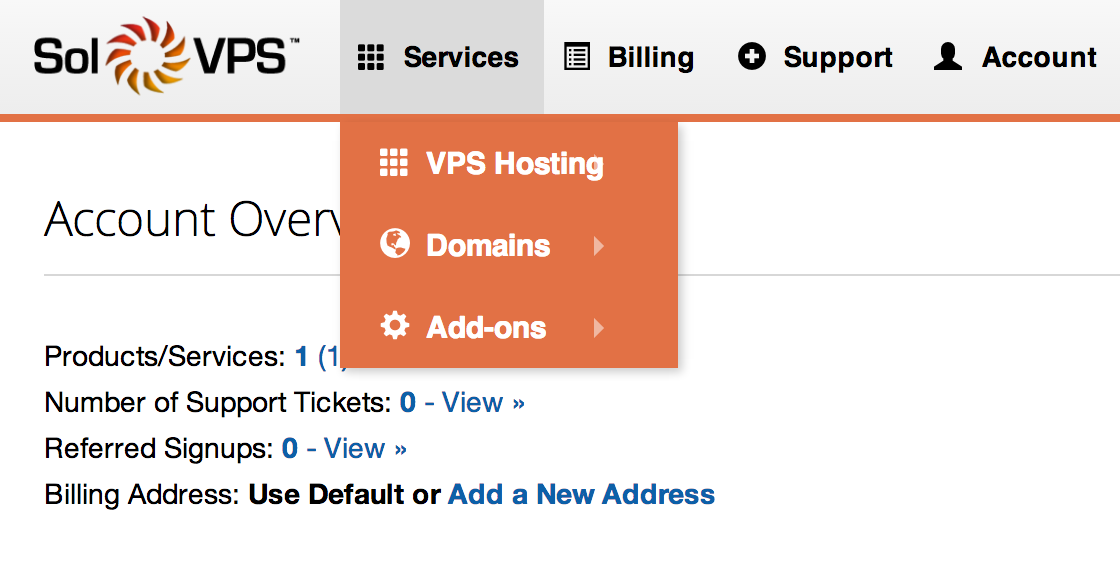
In addition, we have updated the Secure Client Panel with a new Domain Manager, a bulk domain search tool, and easier navigation to Services and Add-ons.

As always, we hope these updates enhance your experience with our service, and we welcome any comments or suggestions.


Posted in Announcements, Maintenance & Service Updates | Tagged , , , | Comments closed

How to Install Virtualmin on your VPS, a Free cPanel Alternative

Many are familiar with cPanel as the industry-leading web server management panel. The software is undoubtedly some of the best available, but its premium cost is sometimes not affordable, especially for small or low-maintenance projects.

Virtualmin is an advanced web server management panel, and a very good alternative to cPanel, with the same administration structure based on root users, resellers, and clients. We would even recommend it above panels like DirectAdmin and Kloxo, which are perhaps more common alternatives for Linux servers. Read on to see how to install Virtualmin with 2 simple shell commands.

virtualmin

Installing Virtualmin is simple, although you will require root shell access to your server or VPS. At the shell prompt, enter the commands below:

cd /root; wget http://software.virtualmin.com/gpl/scripts/install.sh

chmod +x install.sh; ./install.sh

Virtualmin should begin installing, with 1 or 2 options that you will need to select during the process. Once completed, you can access Virtualmin’s web interface at:

https://0.0.0.0:10000

Username: root

Password: [Your server’s root password.]

From the root account, you can create resellers, add websites, and configure your server.

The above instructions will result in a functioning Virtualmin VPS on:

Posted in VPS Hosting | Tagged , , , , , | Comments closed

Are IP addresses dedicated and reserved?

Yes. All IPv4 and IPv6 addresses assigned to VPS instances are privatereserved, and dedicated to your VPS alone.

Posted in Guides & How To's, Linux VPS, Tech Support, VPS Hosting, Windows VPS | Tagged , | Comments closed

How to Use a Domain with your VPS (The Easy Way)

When setting up a new VPS, one of the most common tasks is to link a domain name. The process is roughly the same as with a shared hosting account, although a VPS may or may not come with ready-made nameservers available.

Often, you will need to configure your own nameservers on a VPS. To avoid this and get started as quickly as possible, we will use an easy method to point a domain to a VPS (or other server).

Requirements:

  • Domain name registered (.com, .net, etc.)
  • Using default nameservers and DNS system of the registrar (default settings).
  • IP address of your VPS or server.

Here are the instructions:

  1. Log in to your domain registrar (where your domain was purchased), for example Namecheap or GoDaddy. The example below is from Namecheap.
  2. Locate the section for adding or modifying DNS Zones. Look for “Records” or “Zones.”
  3. Screen Shot 2014-07-29 at 2.30.11 PM
  4. Choose your domain (if not already selected), and proceed to Add a new DNS record.
  5. Add a record of type “A” (Address Record). Fill in the fields like this:Screen Shot 2014-07-29 at 2.17.30 PM
  6. Additionally, add a CNAME record for “www”, pointing to “domain.com” (your domain) in order to use www.

Save the new settings, and exit. That’s it!

The crucial step is pointing “@”, which stands for your root domain ‘domain.com’, to the IP address of your VPS. The registrar’s nameservers will now host this record, and all traffic to your domain will be automatically routed to the server IP address.

Note that if your registrar’s format does not allow “@”, you can usually leave the ‘subdomain’ field empty, because you are entering a record for the root domain.


Posted in Featured Guides, Guides & How To's, Linux VPS, Tech Support, VPS Hosting | Tagged , , , | Comments closed

Can I order a Free VPS Trial?

Yes. Depending on availability, Free VPS Trials are available for both Linux VPS and Windows VPS services. Please contact us for more information!

Posted in About SolVPS, VPS Hosting | Tagged , , , , | Comments closed

What is RAM (Memory)? What is it used for?

RAM, or Random Access Memory, is a core component of computer systems that is used to store currently-running applications and other data not yet committed to the disk. 

It is fair to say that the amount of system RAM directly affects system performance. With more RAM, a VPS has more ability to perform without restrictions and slowdowns. With less RAM, a VPS may encounter a shortage and will be forced to perform more slowly as a result. 

The amount of RAM required for a VPS is different for each application, but you can use the following guide to get an idea: 

128 MB RAM: Very small, ideal for a single daemon or script.
512 MB RAM: The minimum required by Windows Server, and the absolute minimum suggested for many server applications like cPanel.
1 GB RAM: Enough for many applications, and a good amount to run Windows Server or any Linux distribution with good performance.
2 GB RAM: Used for busy applications, large applications and servers that hold many connections or users simultaneously. 

Posted in Guides & How To's, Linux VPS, Tech Support, VPS Hosting, Windows Server | Tagged , , , | Comments closed

CentOS 7.0 and 5 New Linux VPS Builds

Earlier this week CentOS, our favorite Linux distribution, released testing build of version 7.0. We have made CentOS 7.0 available for all of our Linux VPS instances. The new CentOS 7.0 Testing release is selectable from the Reinstall section of the VPS Panel, and can also be selected for setup of new instances (we don’t recommend choosing CentOS 7.0 for production servers yet). We’re happy to report that the el7 system is working flawlessly on our platform: centos-7-vpsAs an additional bonus, we have updated several build templates, with new build options now available for Linux VPS instances:

  • CentOS 7.0 Testing (64-bit)
  • CentOS 6.5 with GNOME (VNC Remote Desktop)
  • Ubuntu 12.04 LTS with Xfce (VNC Remote Desktop)
  • Ubuntu 14.04 with Xfce (VNC Remote Desktop)
  • Slackware 14.1

All of these builds are available for new and existing VPS instances. Try a CentOS 7 VPS, Ubuntu VPS with remote desktop, or Slackware VPS!

Posted in Announcements, Company News, Guides & How To's, Linux VPS, VPS Hosting | Tagged , , , , | Comments closed

What kind of virtualization does SolVPS use?

SolVPS utilizes Xen virtualization for both Linux VPS and Windows VPS instances. 

We use a combination of Xen Paravirtualized and Xen Hardware-virtualized solutions, typically Paravirtualized (PV) for Linux VPS instances and Hardware-virtualized (HVM) for Windows VPS instances. 

It is our experience that Xen offers the best combination of performance, stability, and security for VM instance hosting, and for this reason we have chosen to employ Xen as the basis of our virtualization platform.

As an official member of the open source Xen Project (www.xenproject.org), we are committed to actively developing and supporting Xen. 

Posted in About SolVPS, Guides & How To's, Linux VPS, VPS Hosting | Tagged , , , , | Comments closed

How to Log in to cPanel/WHM VPS

If you chose to install cPanel/WHM on your VPS, you can log in to the WHM control panel interface immediately after VPS setup at:

You should replace “x.x.x.x” in the above example with the primary IP address of your VPS.

screenshot-cpanel-4

Posted in Guides & How To's, Linux VPS, Tech Support, VPS Hosting | Tagged , , , , | Comments closed


Questions? We're here to help.