Blog

New Stock Available – High-performance Virtual Servers

We are pleased to announce that we have added additional capacity in our New York and London data centers. With the expanded capacity we have added additional high-performance VPS hypervisors, hosting both our Windows and Linux virtual servers.

Windows VPS with Remote Desktop (RDP), a complete, fully licensed remote Windows server system running on our 100% pure SSD VPS platform. Perfect for remote desktop and Windows Server platform requirements.

  • Windows Server 2012 R2
  • Windows Server 2008 R2
  • Windows Server 2003 R2
  • Windows 8 / 7 / XP

+ Xen-powered Linux VPS, virtual servers based on Xen hypervisor providing superior performance, stability, and security when compared to other VM hosting platforms. Available with latest releases from all major Linux distributions, including:

Both Linux and Windows virtual servers are hosted seamlessly on our high-performance VM platform, supporting migrations, backups, and easy upgrades. We have built an optimized platform using RAID10 SSD block storage, Intel® powered compute nodes, and direct uplinks to worldwide data networks, each guaranteed by our 100% Resource Availability SLA.

In addition to high-performance hardware, all servers may access unlimited premium bandwidth to deliver best connectivity for all users. Windows VPS and Linux virtual servers are available in our New York, USA and London, UK data centers.

We are a Microsoft Certified Partner, as well as Parallels and cPanel partners. Your service can be delivered with your choice of software, and your choice of service level:

Host anything with us!

Find us on live chat or send a message to the Sales/Support team to see how we can help with your project.

Sincerely,

SolVPS Management

Posted in Announcements, Company News, Offers & VPS Deals, VPS Coupons | Tagged , , , , , , | Leave a comment

[How to] Upgrade .NET Framework on Windows Server 2008/2012 R2 VPS

If you are using a Windows Server 2008 R2 system, or an earlier OS, you might find that you need to upgrade .NET Framework to the latest version.

Fortunately, the process is simple. Follow this link from your Windows VPS / Windows server to download the .NET Framework 4.5 update package directly from Microsoft: http://www.microsoft.com/en-us/download/details.aspx?id=30653

The updater will install the .NET Framework update on your system, or warn you if there are any missing requirements.

If you are using Windows Server 2012 R2, the system should already have the latest .NET Framework installed.

newdotnetlogo_2

This process applies to:

  • Windows Server 2008 R2
  • Windows Server 2012 R2
Posted in Guides & How To's, Tech Support, Windows Server, Windows VPS | Tagged , , , | Comments closed

SSL Issue Fixed on panel.solvps.com

Greetings,

We have resolved a small issue with https://panel.solvps.com, our VPS management interface, which had been causing SSL validation errors in some browsers. It should now be fully compatible in all browsers, without issuing warnings.

There have also been some minor updates and bug fixes to the panel today, mostly cosmetic.

We welcome you to contact us if you notice a bug, or would like to request a new feature.

Posted in Maintenance & Service Updates | Tagged , , | Leave a comment

[How to] 301 Redirect with .htaccess (Apache/cPanel/Linux VPS)

A 301 Redirect, or permanent redirect, is a useful tool for redirecting traffic from one webpage to another. The benefit of the official 301R is that it is Google-approved and SEO friendly. Typically Google will recognize the permanent redirection, and will adjust search results and indexed pages accordingly.

To setup a 301 Redirect requires access to your website’s files. Log in with FTP or another method, and follow the steps below:

1. Look for a file called .htaccess in public_html, the web directory of the website/location you want to redirect from. You may need to enable View Hidden Files to see .htaccess. If it does not exist, create it.

2. Add this line to .htaccess to setup a 301 redirect for a specific page:

Redirect 301 /old-file-name.html /new-file-name.html
3. Add this line to 301 redirect a directory:
Redirect 301 /old-directory-name /new-directory-name

You can also 301 redirect to a new domain:
Redirect 301 /old.html http://www.newdomain.com/new.html

After adding the appropriate line (called a rule), save the .htaccess file. The changes should go into effect immediately.

This process should be the same on any cPanel VPS, or other Linux server running Apache.
Posted in Guides & How To's, Linux VPS, Tech Support, VPS Hosting | Tagged , , , | Comments closed

[How to] View RDP Access Log IP Addresses in Windows VPS

You might find yourself wondering how to view IP addresses that have accessed RDP on your Windows VPS, or how to review the RDP access log to see who logged in last. This quick how-to will show you how to use the Event Viewer in Windows Server.

First, open Event Viewer (you can search in the Start menu). Then, navigate to:

Applications and Services Logs\Microsoft\Windows\TerminalServices-LocalSessionManager

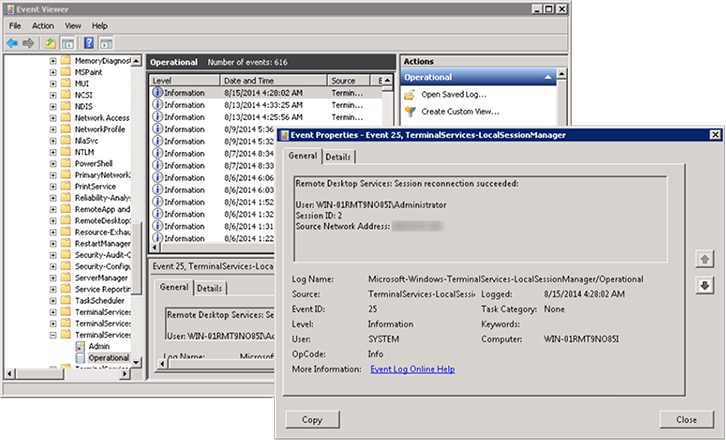
Under that view, double-click to open the ‘Operational’ view. You can double-click the entries to see more information about when they were logged, including the origin IP address:

event-viewer-screenshot

This process applies to:

  • Windows Server 2008 R2
  • Windows Server 2012 R2
Posted in Guides & How To's, Tech Support, Windows Server, Windows VPS | Tagged , , , , | Comments closed

How to Install Installatron for Free on a cPanel VPS

Installatron is a one-click application installer. If you use a cPanel VPS, Plesk VPS, or another control panel, application installers like Installatron are extremely convenient for automating installations of software like WordPress, Magento, shopping carts, MediaWiki, forums, and hundreds of other applications.


softaculousapps

What’s more, you can install Installatron free on your cPanel VPS or server. The software can run perpetually in a trial mode limited to 1 domain. If you need to install apps on more domains on the same server, the multi-domain license costs only $4 (and, of course, you can ask us for it).

On to the installation. Simply access our VPS or dedicated server as the root user, and execute the following commands:

wget http://data.installatron.com/installatron-plugin.sh
chmod +x installatron-plugin.sh
./installatron-plugin.sh -f

That’s it. If you use cPanel, you should now find Installatron available in the Addons section of the admin interface (WHM).

This applies to:

  • CentOS or RHEL with cPanel/WHM
  • CentOS with Virtualmin or Webmin
Posted in Guides & How To's, Linux VPS, Tech Support, VPS Hosting | Tagged , , , , | Comments closed

Why choose SSD VPS hosting?

What is SSD VPS hosting? How is it different from other virtual server hosting?

Solid-state drives, or SSDs, are new storage devices based on 100% flash-based memory. They supersede disk-based HDD storage in speed, reliability, and other areas. Our virtual server hypervisors are connected to pure SSD storage arrays that power each virtual server. Arrays utilize RAID10 storage-mirroring technology to maintain data parity and throughput performance.

feature-ssd-2

SSD VPS hosting has some key benefits over traditional VPS hosting:

  • Vastly improved speed for operations like database I/O, and other i/o-intensive tasks.
  • Extremely fast VM boot up, reboot, and reinstallation times. Our platform can spin up a Windows 2008 VPS or Windows 2012 VPS in about 12 seconds.
  • Overall improved system performance and greater availability of processing resources, as CPU is no longer taxed by operations waiting for access to slow physical storage

If you run any of the following, we highly recommend switching to a SSD VPS:

  • Optimized / Critical website or web portal
  • Website, app, or service with active database
  • Media streaming or compression, decompression, encoding-based tasks

These are just a few ideas. As the newest and best-performing technology available, solid-state storage can benefit any application, and we recommend it for all websites seeking the best available performance.

Check out our Linux SSD VPS and Windows SSD VPS hosting services for an idea of how to move your website or app to SSD virtual server hosting.

Posted in About SolVPS, Featured Guides, Guides & How To's, Linux VPS, VPS Hosting, Windows VPS | Tagged , , | Comments closed

Installing XAMPP on Windows VPS (Server 2012 or 2008 R2)

XAMPP is a web server distribution based on Apache. It is composed of completely open source software, and supports installation on multiple platforms. We love using it with Windows 2012 VPS and Windows 2008 VPS systems, because the install process is simple – just download and execute the installer.

1-xampp-logo

Navigate to the following page from your Windows VPS, and download the proper installation .exe: https://www.apachefriends.org/download.html


Open the .exe to begin the installation. XAMPP will fully automate the installation and basic setup of:

  • Apache
  • MySQL + phpMyAdmin
  • PHP
  • Perl

Once the installation completes, you can begin configuring your websites with software like WordPress or Joomla. XAMPP will install FTP, so you can upload files with any FTP client.

Posted in Featured Guides, Guides & How To's, Tech Support, Windows Server, Windows VPS | Tagged , , , , | Comments closed

How to Install cPanel VPS Optimized via SSH (CentOS Linux)

cPanel VPS Optimized is a highly functional Linux server control panel. It is commonly used to host websites, provision reseller and web hosting accounts, and perform hosting-related maintenance. 

It’s very easy to install cPanel on a VPS with SSH. You can accomplish it with a few steps:

  1. Log in to your Linux VPS via SSH as the root user (or gain root permissions from another user). If you’re not familiar with SSH, check out How to Connect to your VPS with SSH.
  2. Copy the following into the server’s command line:

    yum install -y perl;cd /home;wget -N http://httpupdate.cpanel.net/latest;sh latest;/usr/local/cpanel/cpkeyclt

    The last part of the command will automatically check for and verify the server’s cPanel license. If you do not have a license, you can still install WHM/cPanel, but the licensing command will fail and cPanel will continue in trial mode until verified. (Should you need help getting a license, just ask us!)

This article applies to:


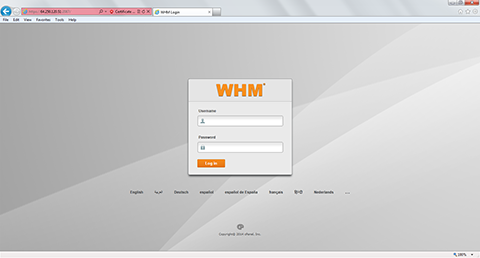
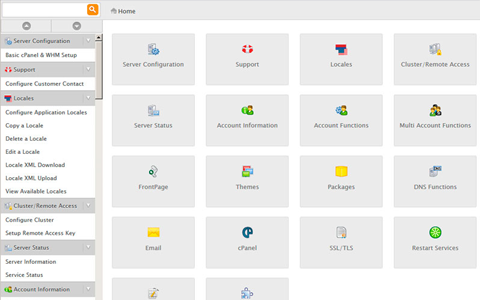
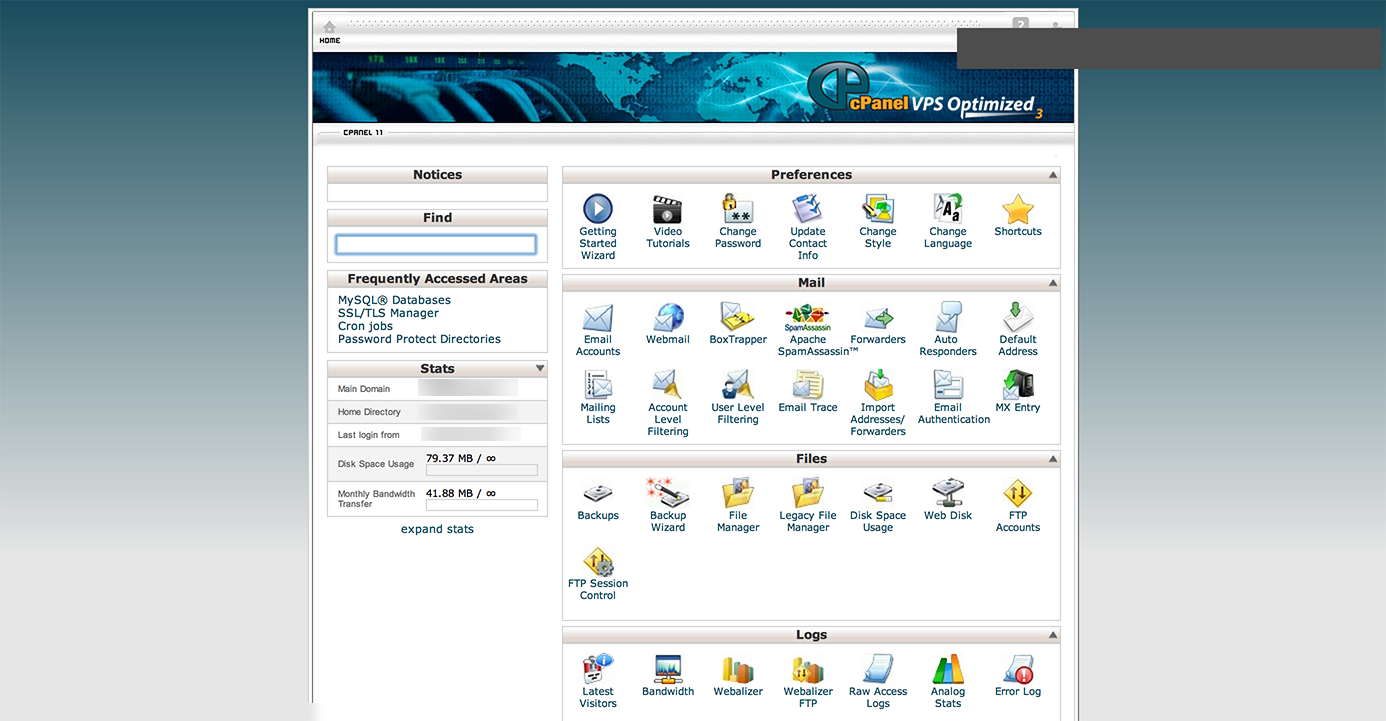
screenshot-cpanel screenshot-cpanel-1 screenshot-cpanel-3

Posted in Guides & How To's, Linux VPS, Tech Support, VPS Hosting | Tagged , , , , , | Comments closed

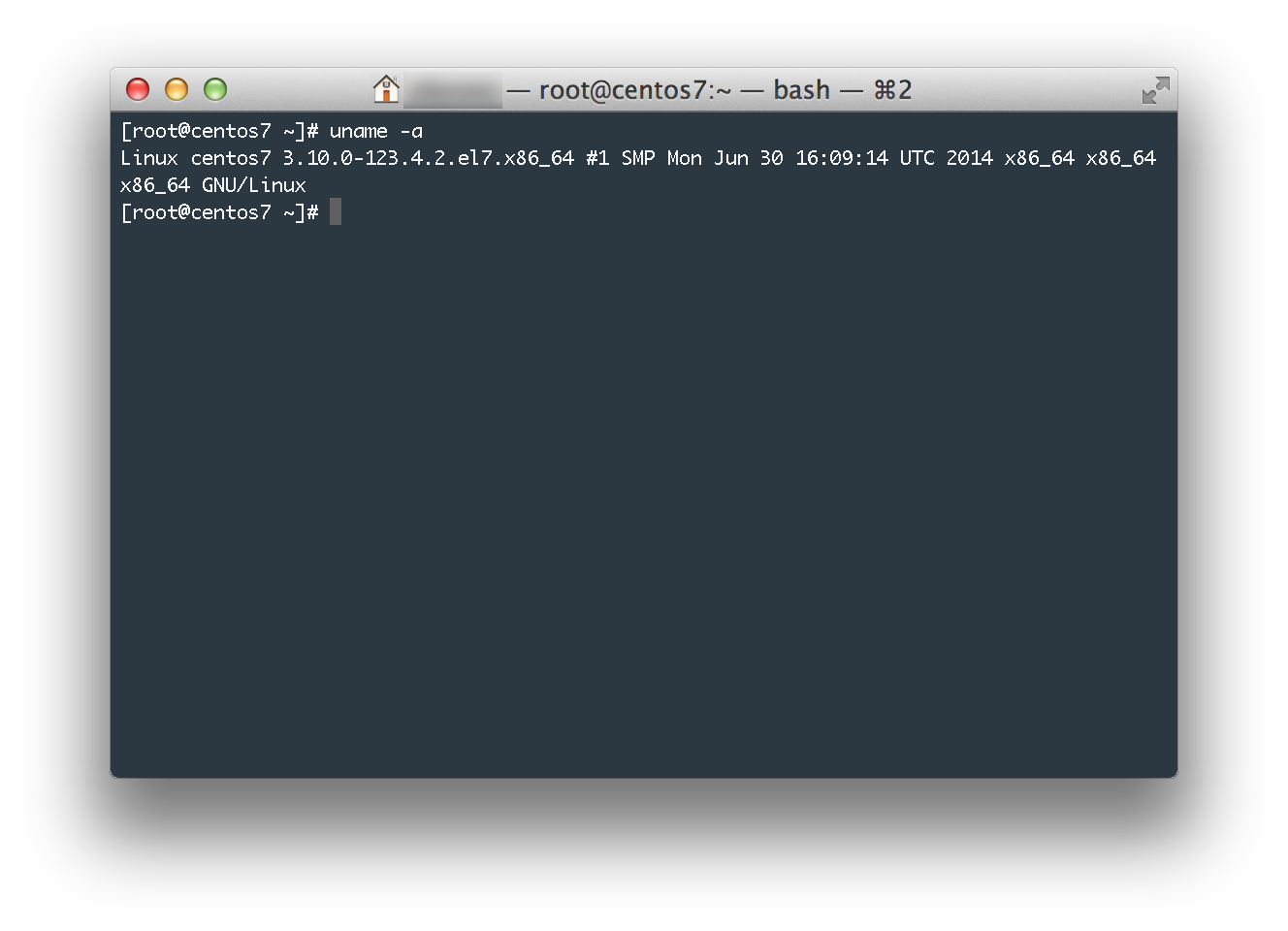
CentOS 7.0 VPS Build Released

Just a quick update that we have updated our CentOS VPS build templates for the final 7.0 release. The new OS is available in the VPS Panel, and for new Linux VPS orders.

centos-7-vps

Posted in Announcements, Maintenance & Service Updates | Tagged , , | Comments closed


Questions? We're here to help.