Blog

Run “yum update” with a specific repo (CentOS/RHEL Linux)

To tell yum to check only a specific repository for updates, append the yum command like below:

yum --disablerepo="*" --enablerepo="my-repo" update

The –disablerepo=”*” disables all repositories, and then –enablerepo=”my-repo” enabled only my-repo. Note that the repository you enable must already be configured in the system, or this command will not work.

First, you may want to check which repositories are currently active in the system. Confirm that the repository you want to update from is enabled. To get a list of all repositories currently active, run:

yum repolist

The same command line options can be used with yum install and other operations, for example

yum --disablerepo="*" --enablerepo="my-repo" install httpd

This article applies to:

  • CentOS Linux
  • Fedora Linux
  • RHEL
Posted in Linux VPS, Tech Support, VPS Hosting | 1 Response

Installing SQL Server Management Tools & SSMS on Window Server/VPS

SQL Server Management Studio (SSMS) is part of SQL Server Management Tools provided by Microsoft for administrators and developers to interface with Microsoft SQL Server. Management Studio is used to connect to a database and directly manage its layout, settings, database objects, and much more.

Read on to see how to install SQL Server Management Studio on a Windows Server or Windows VPS.

(Need help deploying SQL ServerWe provide a full range of Windows Server and Microsoft SQL Server based solutions!

Install SQL Server Management Studio (SSMS)

Depending on your deployment, you may also want to install SQL Server Management Studio. SSMS is used to access local and remote SQL Server databases for administration and development. If you do not already have Management Studio installed elsewhere, you should install it on your Windows Server or VPS alongside SQL Server Express. Follow the steps below to install SQL Server Management Tools.

SQL Server Management Tools are provided free by Microsoft for all editions of SQL Server.

Visit the Microsoft page to download: https://docs.microsoft.com/en-us/sql/ssms/download-sql-server-management-studio-ssms

Download the installer to the Windows server or VPS, then simply run the installer.

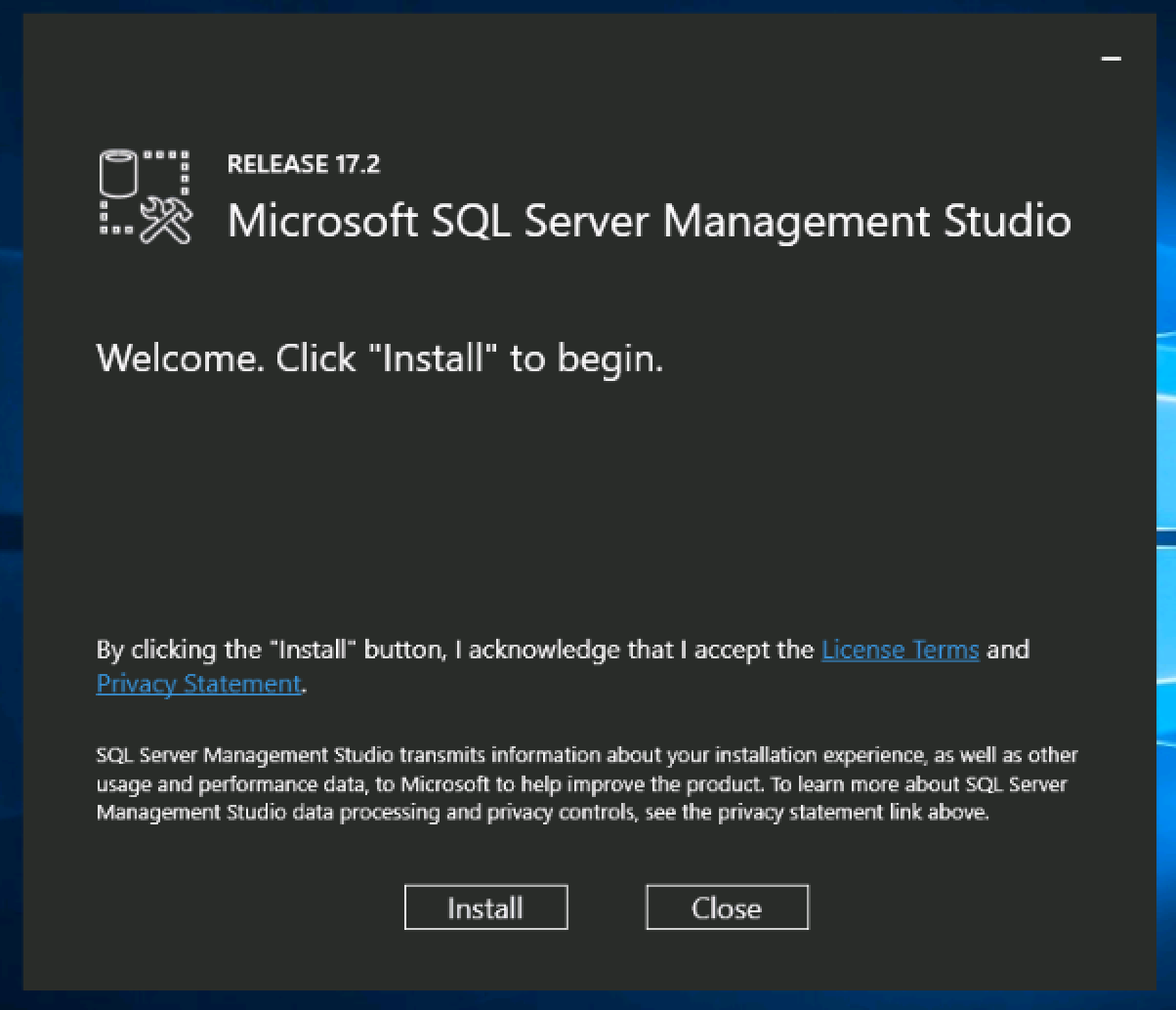
Click Install to start the installation. SSMS will download and install the latest version for your system automatically.

Screen Shot 2017-08-08 at 3.09.32 PM

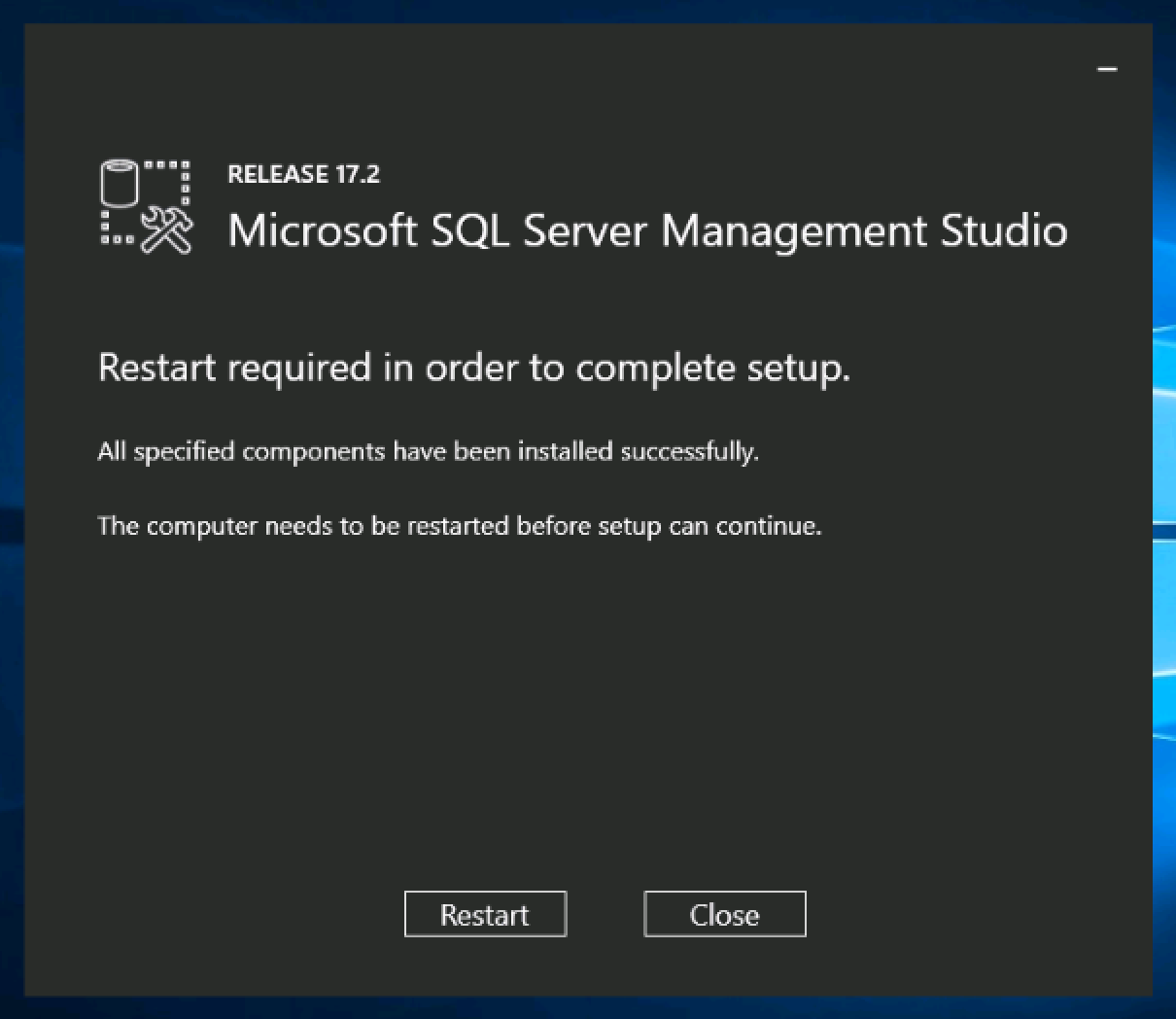
When the installation is complete, the system will require a Restart to finish the installation.

Screen Shot 2017-08-08 at 3.30.29 PM

Posted in Guides & How To's, Tech Support, VPS Hosting, Windows Server, Windows VPS | Leave a comment

Allow All Traffic from an IPv4 Address through CentOS 7 Firewall

In some CentOS 7 installations, the system firewall will block most incoming traffic by default. You may need to allow all traffic from a specific IP address, such as your local computer or management server, in order to log in to the server.

We will use the new firewall-cmd tool to setup the firewall exception. Using “11.22.33.44” as our example IP address, let’s add the new rule:

firewall-cmd--zone=public--add-rich-rule='rule family="ipv4" source address="11.22.33.44" accept'

This command allows all traffic from the source IPv4 address 11.22.33.44 to pass, including all ports.

This article applies to: 

Posted in Guides & How To's, Linux VPS, Security, Tech Support, VPS Hosting | 1 Response

Update Storage Allocation for a MSSQL Database (Windows Server)

The Problem

On Windows Servers running Microsoft SQL Server, you may encounter an error “Could not allocate space for object” or “Primary filegroup is full” in the course of normal operations:

Unhandled Exception: System.Data.SqlClient.SqlException: Could not allocate space for object 'dbo.SearchedUserItems' ... in database 'db_database' because the 'PRIMARY' filegroup is full. Create disk space by deleting unneeded files, dropping objects in the filegroup, adding additional files to the filegroup, or setting autogrowth on for existing files in the filegroup.
at System.Data.SqlClient.SqlConnection.OnError(SqlException exception, Boolean breakConnection, Action`1 wrapCloseInAction)
...

This error is basically equivalent to a “disk full” error. It means the database does not have any space left to expand, according to its pre-defined size restrictions.

How to Update Storage Allocation for MSSQL Database

First, do a quick check to ensure your Windows Server or VPS has sufficient free disk space on C:\ or your SQL partition. It’s possible that your server or VPS is simply out of space!

If the server has enough disk space, follow these steps to update the Storage Allocation for the database.

  1. Open SQL Server Management Studio and connect to your database instance
  2. Click the “View” tab
  3. Select “Object Explorer”
  4. Expand the “Databases” folder
  5. Right click the database your trying to bulk insert into
  6. Select “Properties”
  7. Click the “Files” list option from the “Select a page” area at the left of the properties window
  8. Find the “Database files” row with the “Filegroup” as “PRIMARY”
  9. Add whatever number of megabytes you want to add to the database allocation to the “Initial Size (MB)” number

Cick OK. (You might also want to consider your “Autogrowth” values while you’re here.)

You want to give your database as much storage allocation as you can afford to give it. If it runs out of space you’ll receive this error without auto-grow on and if auto-grow is on you’ll take a performance hit each time it has to auto-grow.

(Originally posted on: https://dba.stackexchange.com/questions/33700/primary-filegroup-is-full-sql-server-2008/)

This article applies to:

  • Windows Server 2016 VPS
  • Windows Server 2012 VPS
  • Windows Server 2008 VPS
Posted in Guides & How To's, Tech Support, VPS Hosting, Windows Server, Windows VPS | Leave a comment

Disable Windows Update + Automatic Reboots on Windows Server 2016

Many administrators prefer to manage Windows updates manually, in the interest of system uptime and security. It is possible to disable Windows Updates in Windows Server 2016, including disabling of automatic reboots. Please note, Windows Update is designed to keep Windows safe, and we recommend keeping Windows Update enabled at all times.

How to Disable Windows Update and Automatic Reboots

Log in to your Windows Server or VPS.

Open PowerShell from the taskbar. If you don’t see it, open Start > Run and type “PowerShell.exe”

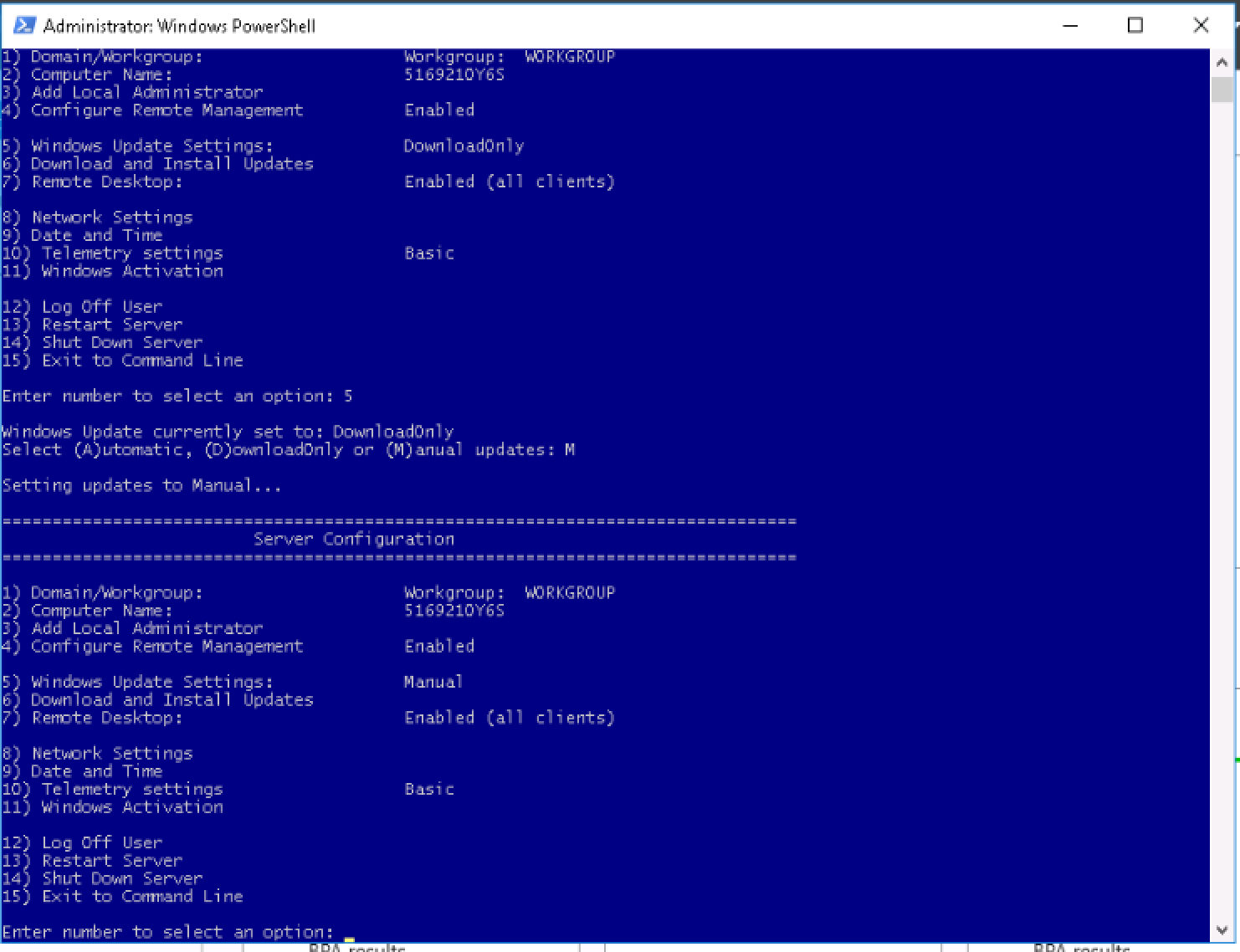
In PowerShell, run the command sconfig

Enter 5, press Enter

Enter M, press Enter (Manual updates only)

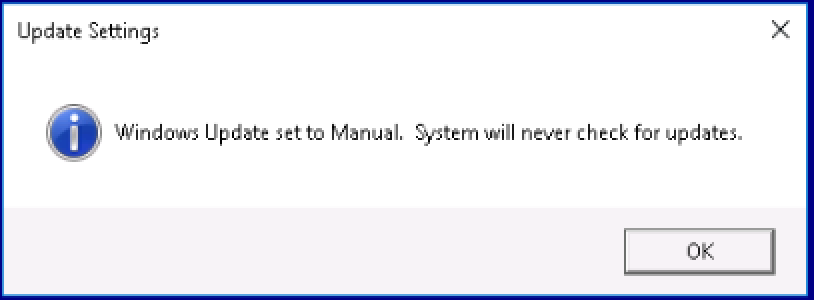
That’s it! Automatic updates are now disabled on Windows Server 2016.

Screen Shot 2017-01-06 at 10.40.33 AM Screen Shot 2017-01-06 at 10.40.21 AM

This guide applies to:

  • Windows Server 2016 Core
  • Windows Server 2016 Desktop Experience
Posted in VPS Hosting, Windows Server, Windows VPS | Leave a comment

Enable Auto-growth for a MSSQL Database (Windows Server)

How to Enable Autogrowth for a MSSQL Database

First, do a quick check to ensure your Windows Server or VPS has sufficient free disk space on C:\ or your SQL partition. It’s important that there is enough physical storage to fluidly grow the database on the server.

If the server has enough disk space, follow these steps to enable Auto-growth for the database.

  1. Open SQL Server Management Studio and connect to your database instance
  2. Click the “View” tab
  3. Select “Object Explorer”
  4. Expand the “Databases” folder
  5. Right click the database your trying to bulk insert into
  6. Select “Properties”
  7. Click the “Files” list option from the “Select a page” area at the left of the properties window
  8. Look for the Auto-growth setting in the table, and set according to your preferences.

Cick OK.

What is Database Auto-Growth?

Auto-growth is a procedure due to which SQL Server engine expands its database size when all its space runs out. The amount due to which the size of database file grows is based on the settings, which is for the growth of file option for database. There are three different settings that can be utilized for identifying the way for growing the database file. It can grow via a specific size, current size percentage or not grow at all. Moreover, it can be set to unrestricted growth, which will keep on increasing, as more is required. 

Why to Use Database Autogrowth In SQL Server?

When an event of auto-growth occurs, server requires in finding the additional disk storage for the database that can grow. Moreover, the disk space will not be physically next to the database, which is existing. It is stored somewhere else on the disk. It causes the database file to be physically fragmented on the disk. More the auto-growth events then, more will be physically fragment on the disk. The default settings of auto-growth settings for a database are rarely ideal settings for how the database will grow.

Process for creating Auto-growth Settings in New-Database

Users can set the setting of auto-growth by utilizing SQL Server Management Studio while creating the new database. Even these methods can be used in changing the settings of the existing databases.

While defining the new database, the initial settings for auto-growth are set to default values. These values are recognized by utilizing auto-growth settings on the database files model. The default values can be viewed on the screen of New Database as shown in the image below.

Auto growth

Now, by clicking on the ellipses button, user can define the auto-growth that makes sense for the database that I am creating. After clicking on the mentioned button, Windows dialog box will appear.
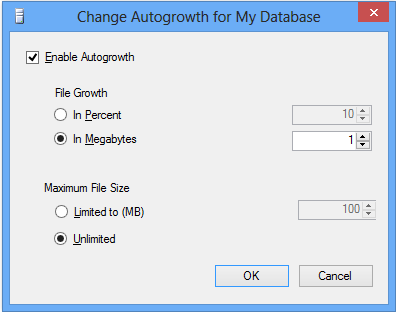
Autogrowth Setting

Now the user can change the auto-growth setting to any of the three possible mentioned values. The first option is the checkbox that enables the auto-growth. If this is unchecked then, there will not be an auto-grow in the newly created database.

Another option is to set File Growth that permits users to set how the data file will grow if it is run out of space. User can set the percentage or Megabytes accordingly for the growth of file. If the large database was based on the percentage then, it will take more space that is required to handle the growth. This causes these large database files to be over allocated from the disk space.

The last option is to maximum file size option. This permits users to set the maximum size, which is will allow server to grow the file. Most of the users normally utilize the unrestricted option of growth due to which most of their applications are well-behaved and are unlikely to grow irrepressibly. In addition, using the options of unrestricted reduces application failures due to auto-growth restrictions. If it is important to make sure, no other database utilizes up all the disk space then, setting a maximum file size will avoid this.

This article applies to:

  • Windows Server 2016 VPS
  • Windows Server 2012 VPS
Posted in Guides & How To's, Tech Support, VPS Hosting, Windows Server, Windows VPS | Leave a comment

Installing Visual Studio 2017 on VPS or Windows Server

Visual Studio is a free, fully featured, and extensible solution for individual developers to create applications for Android, iOS, Windows, and the web. Installing Visual Studio on a server or VPS has many advantages, like keeping your work separated and available 24/7, as well as the performance advantages that come along with cloud hosting: ultra-fast download/upload, local storage, and system I/O.

A Windows VPS or remote desktop makes an ideal development environment. Learn more about our Windows VPS hosting here.

Install Visual Studio 2017 on a Windows Server or VPS

First, log in to your Windows Server or Windows VPS. Open a web browser and go to the Microsoft download page for Visual Studiohttps://www.visualstudio.com/downloads/

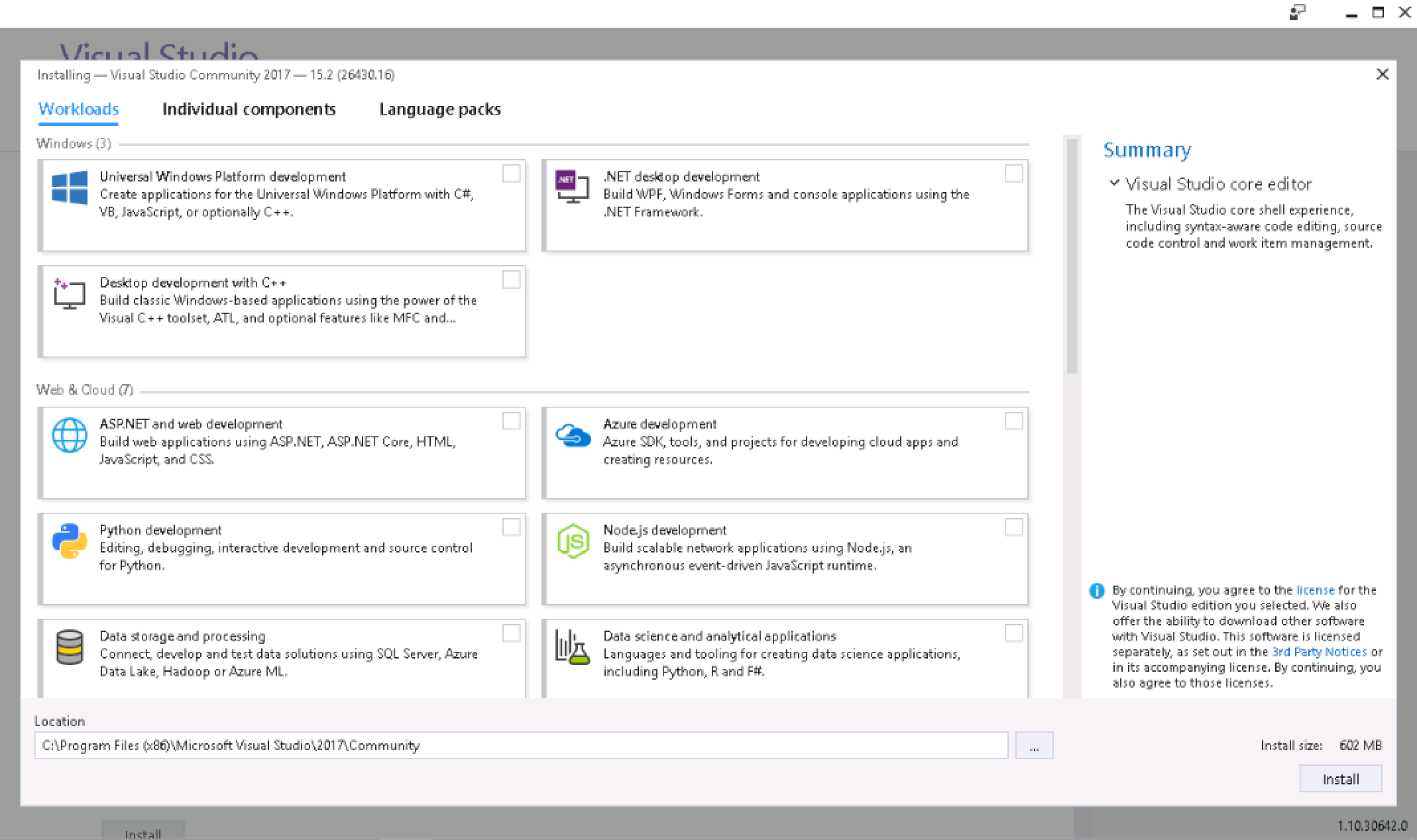
Download the installer to the server or VPS. Open the installer, and you should see the Visual Studio start screen:

Screen Shot 2017-08-08 at 3.19.24 PM

Select the development packages that you want to install, as required by your project.

The selected packages will download and install automatically. Once completed, you can launch Visual Studio.

Screen Shot 2017-08-08 at 3.20.37 PM

Install Tools for Visual Studio 2017

You can also find free downloads of available tools for Visual Studio, including:

Visit the download page: https://www.visualstudio.com/downloads/

This article applies to:

  • Windows Server 2016 VPS
  • Windows 10 VPS
  • Windows Server 2012 VPS
Posted in Guides & How To's, VPS Hosting, Windows Server, Windows VPS | Leave a comment

Tail Live Output of a Log File on Linux VPS or Server (SSH)

Maybe there is a log file you check frequently, or you want to watch updates to a log file in real time, as you are working on the server or application. Well, you’re in luck. There is a Linux command especially for that!

You will need to use a secure shell (SSH) session to run this command, though root privileges are not required. To watch a log file (or any file) updated live in real-time, use a modified tail command:

tail -f /path/thefile.log

The result will print any new lines to the shell as they are written to the file.

And that’s it!

This article applies to: 

Posted in Linux VPS, VPS Hosting | Leave a comment

Installing MS SQL Server Express on Windows VPS or Server

SQL Server Express is a free version of Microsoft SQL Server available from Microsoft. It’s excellent for building small, data-driven web and mobile applications up to 10 GB in size.

You can easily scale your applications across SQL Server editions as you grow—without having to change application code due to the common programming surface enabled by SQL Server 2016 SP1. It’s easy to upgrade to SQL Server Web, SQL Server Standard, or SQL Server Enterprise with very little maintenance required. 

(Need help deploying SQL Server? We provide a full range of Windows Server and Microsoft SQL Server based solutions!)

How to Install SQL Server Express

First, log in to your Windows Server or Windows VPS. Open a web browser and go to the Microsoft download page for SQL Server Express: https://www.microsoft.com/en-us/sql-server/sql-server-editions-express

Download the installer to the server or VPS.

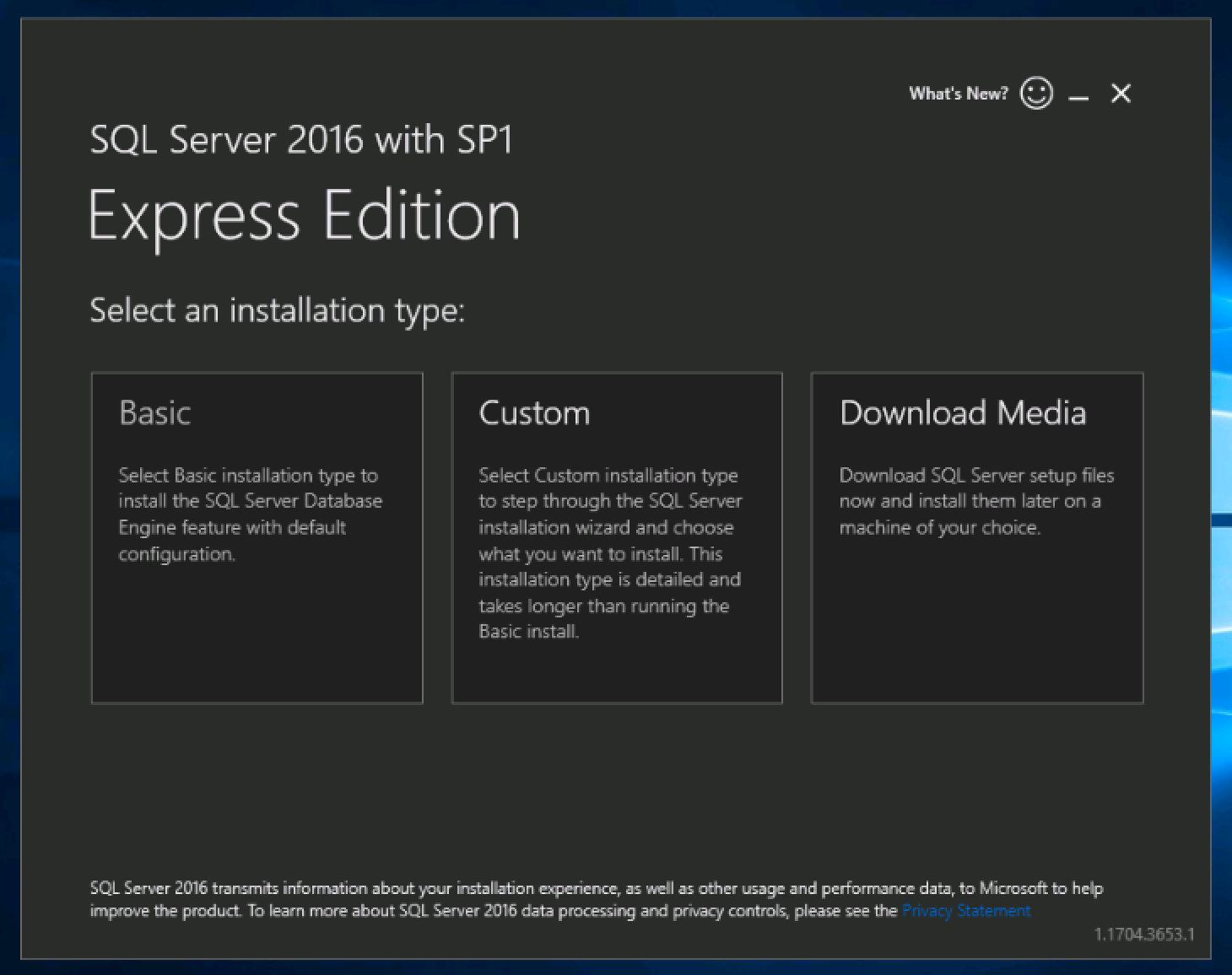
Open the installer, and you should see the typical SQL Server start screen:

Screen Shot 2017-08-08 at 2.49.04 PM

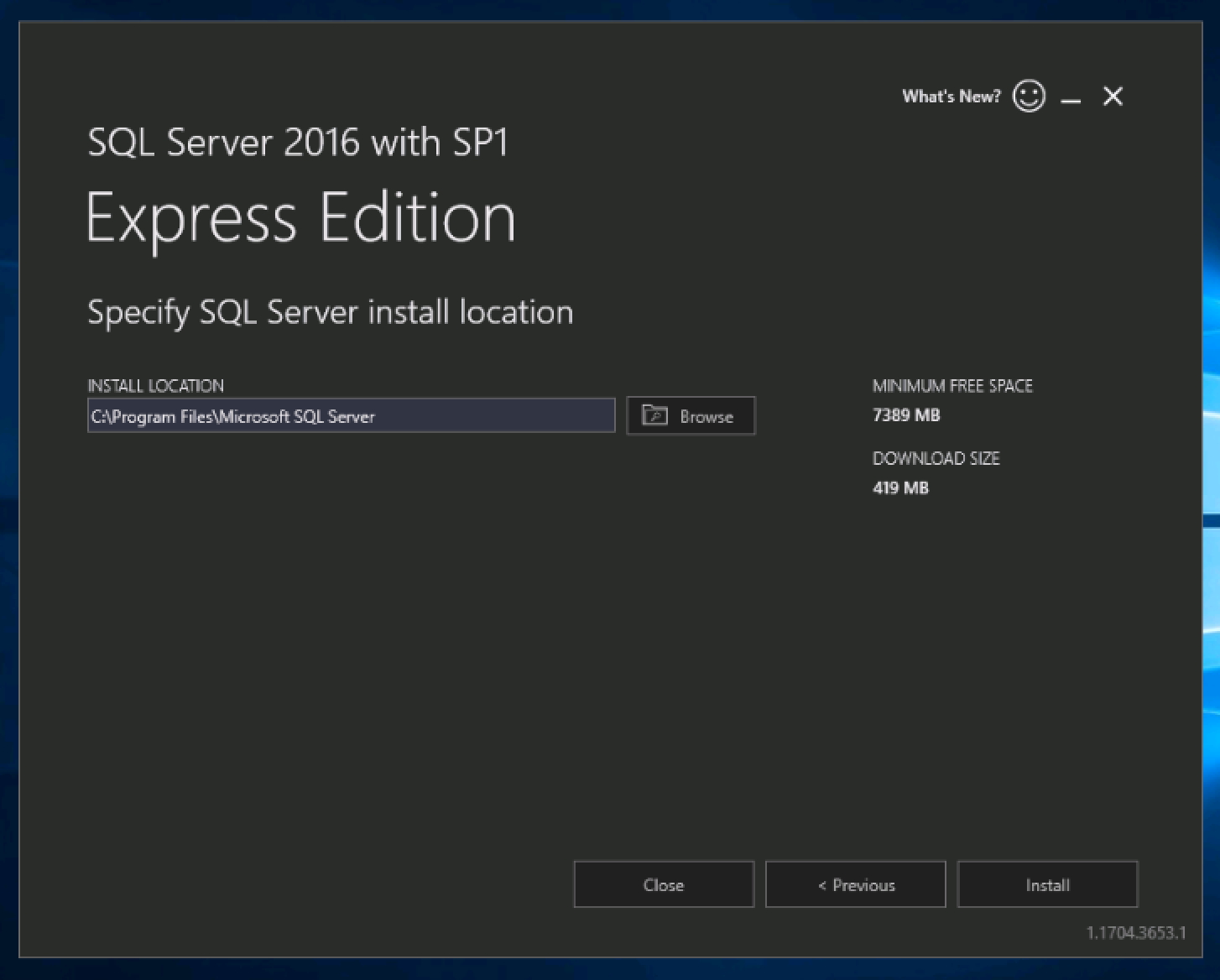
We will choose the Basic installation. Proceed through the EULA terms, and confirm the installation destination.

Screen Shot 2017-08-08 at 2.49.16 PM

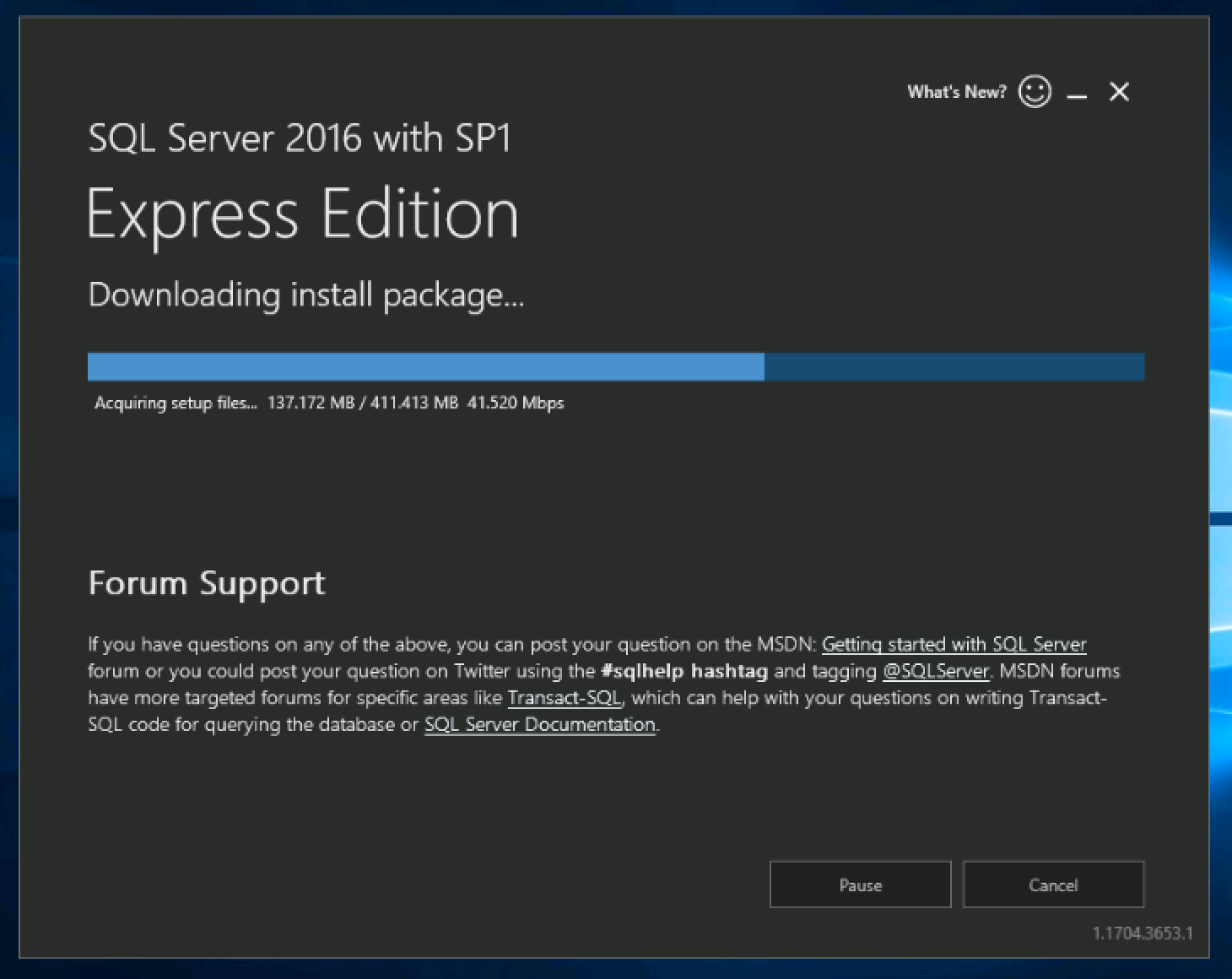
SQL Server will download the latest version and install…

Screen Shot 2017-08-08 at 2.50.25 PM

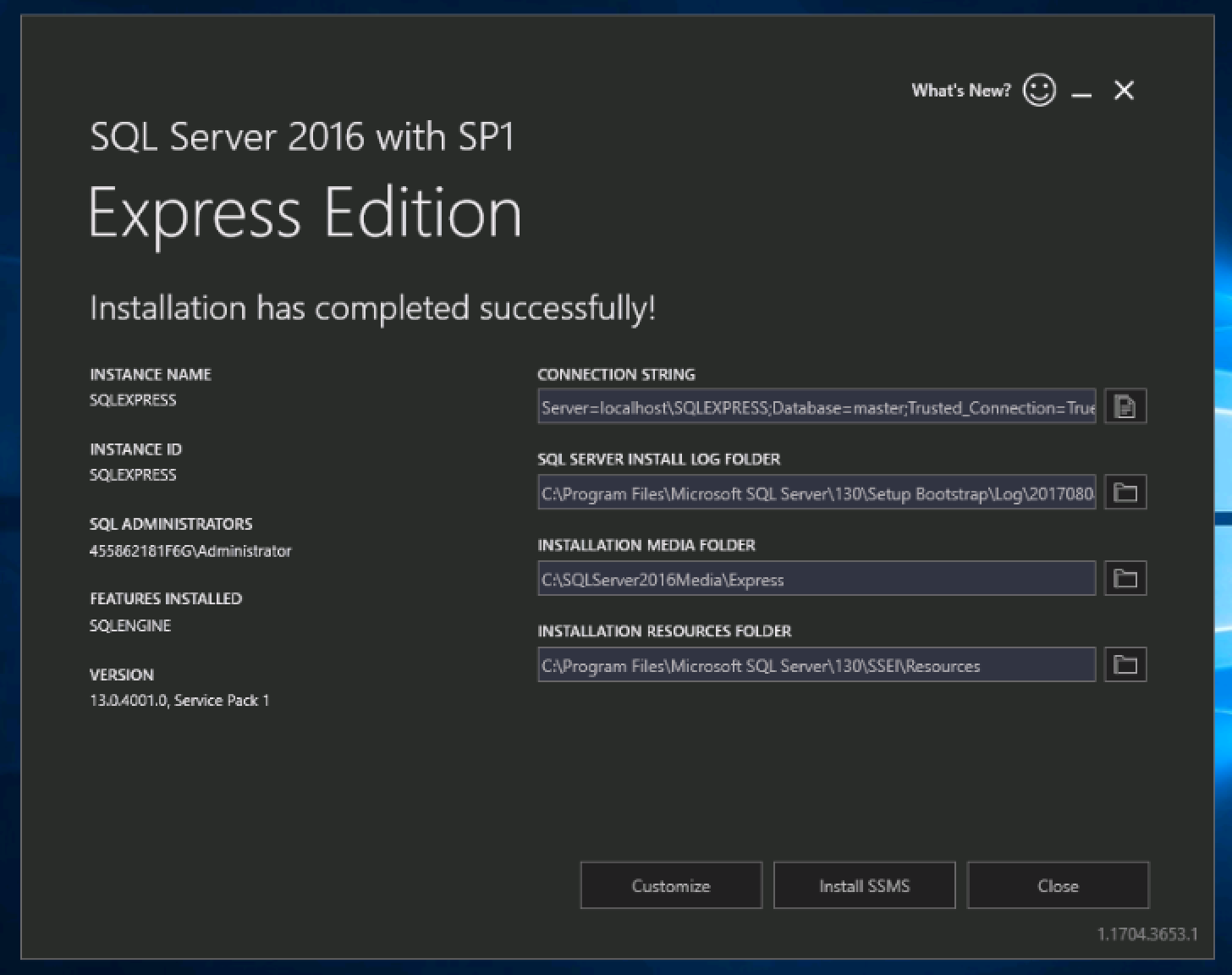
The installation will finish up without any further input required. At the end, you will see a screen with connection details for the new SQL Server Express instance conveniently displayed:

Screen Shot 2017-08-08 at 3.05.52 PM

Install SQL Server Management Studio (SSMS)

Depending on your deployment, you may also want to install SQL Server Management Studio. SSMS is used to access local and remote SQL Server databases for administration and development. If you do not already have Management Studio installed elsewhere, you should install it on your Windows Server or VPS alongside SQL Server Express. Follow the steps below to install SQL Server Management Tools.

SQL Server Management Tools are provided free by Microsoft for all editions of SQL Server.

Visit the Microsoft page to download: https://docs.microsoft.com/en-us/sql/ssms/download-sql-server-management-studio-ssms

Download the installer to the Windows server or VPS, then simply run the installer.

Click Install to start the installation. SSMS will download and install the latest version for your system automatically.

Screen Shot 2017-08-08 at 3.09.32 PM

When the installation is complete, the system will require a Restart to finish the installation.

Screen Shot 2017-08-08 at 3.30.29 PM

This article applies to:

  • Windows Server 2016 VPS
  • Windows Server 2012 VPS

F

Posted in Featured Guides, Guides & How To's, Tech Support, VPS Hosting, Windows Server, Windows VPS | Leave a comment

Open Server Manager from Command Prompt (cmd) in Windows Server

Can’t find Server Manager? It’s ok, it happens. It’s possible to launch Server Manager from command prompt or PowerShell.

How to Open Server Manager via Command Prompt

1. Open Command Prompt (Start > Run > cmd), or PowerShell

2. Type ServerManager and press Enter

Server Manager should open. That was easy!

This article applies to: 

  • Windows Server 2016
  • Windows Server 2012
  • Windows Server 2008
Posted in Tech Support, VPS Hosting, Windows Server, Windows VPS | 1 Response


Questions? We're here to help.