
Follow the steps below to change the password for your Windows server instance. The password you will change is the password of the Administrator user, which is used to access the server with RDP (remote desktop). Changing the password requires access to the server.
First, log in your Windows Server instance via remote desktop. Open Start > Control Panel:
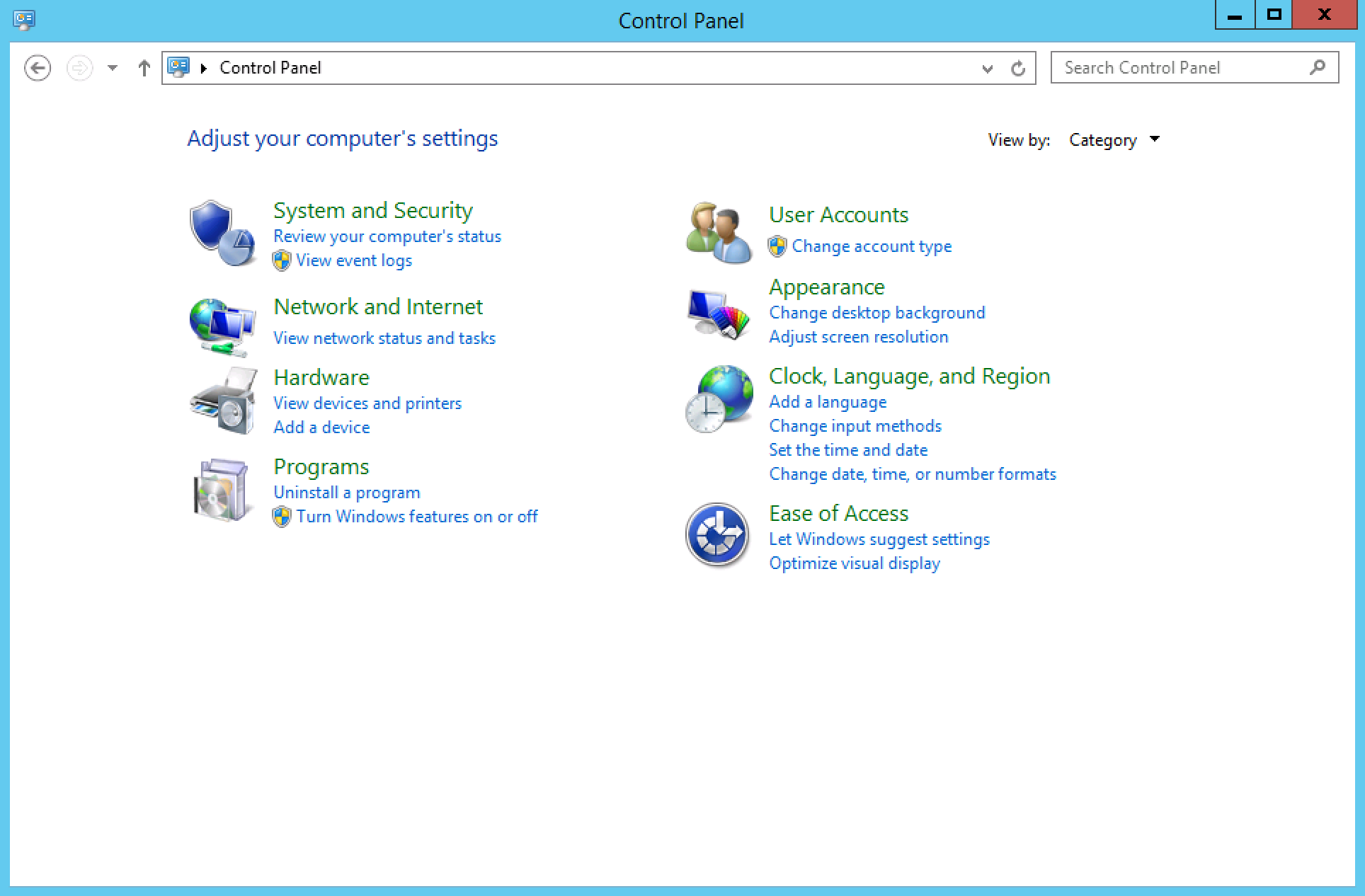
Navigate to the User Accounts section. Here, find the link Change account type:
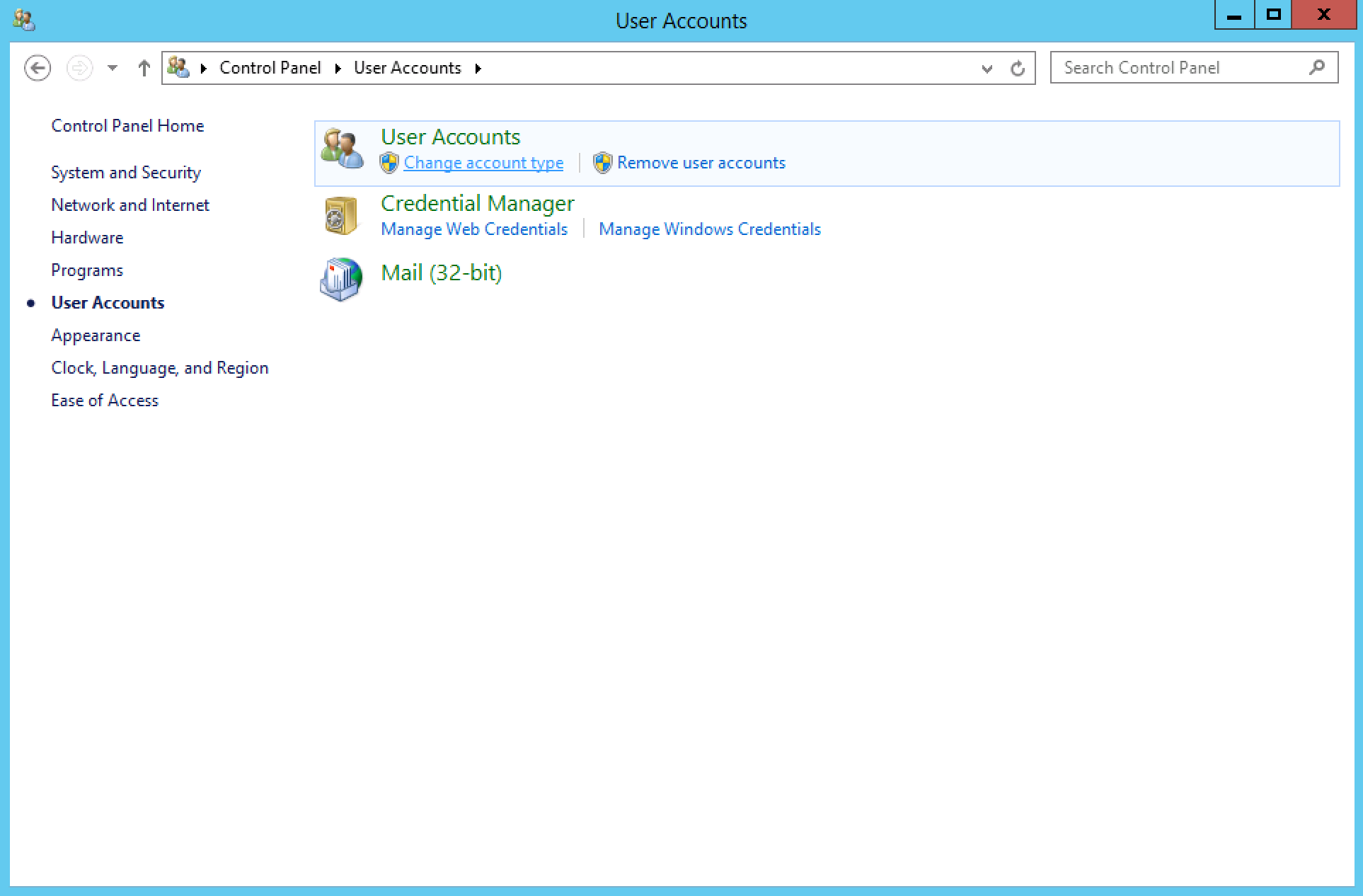
Select your user (Administrator or Admin) and click Change the password:
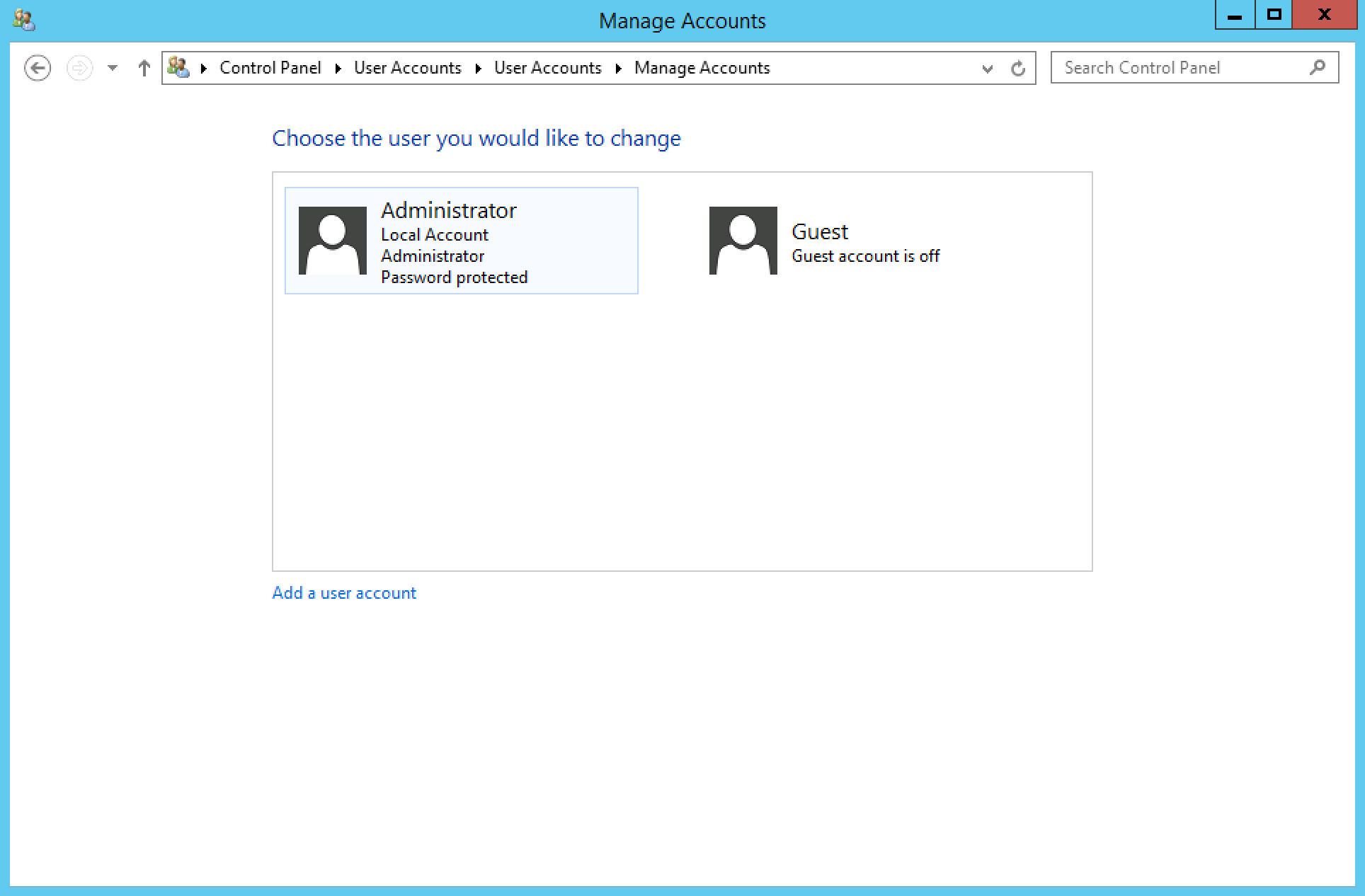
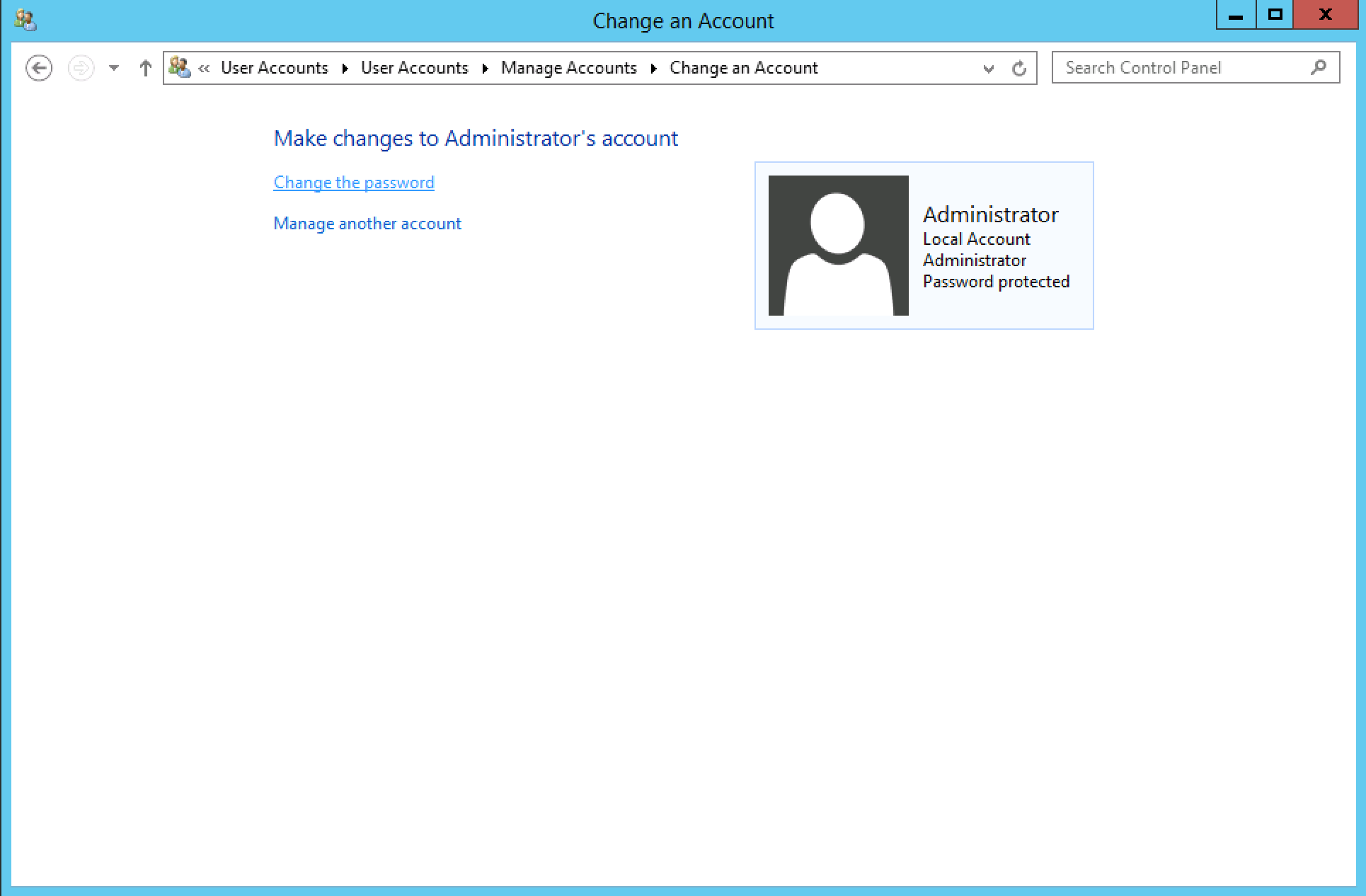
Remember to always use a secure password!
This guide applies to:
Lightning-fast VPS hosting with enterprise SSD storage, global data centers, and 99.99% uptime. Built for developers, trusted by enterprises.
support@solvps.com
1-888-256-8213
These cookies are essential for the website to function and cannot be switched off.
These cookies enable enhanced functionality and personalization, such as live chat or video.
These cookies help us understand how visitors interact with the website (for example Google Analytics).
These cookies are used to deliver and measure advertising (for example Meta Pixel, LinkedIn Insight, Google Ads).